
iOS Setup – Quick & Simple
Follow these easy steps to set up REAL 2X Player on your iPhone. Visit the website, enter your details, log in, and start streaming instantly with smooth cloud performance.
Step - 1
Open browser and visit: https://app.xtvplayer.com/
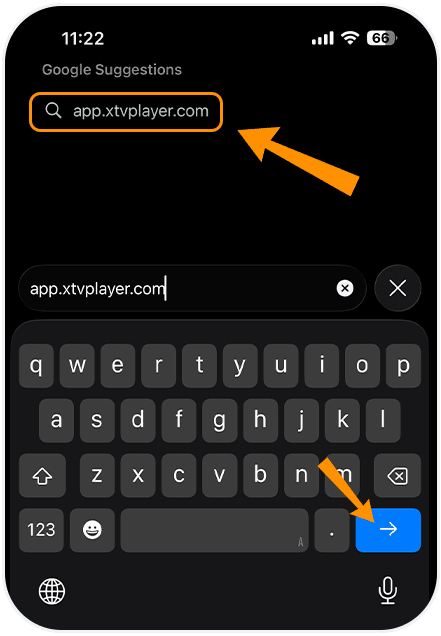
Step - 2
Choose your preferred language.

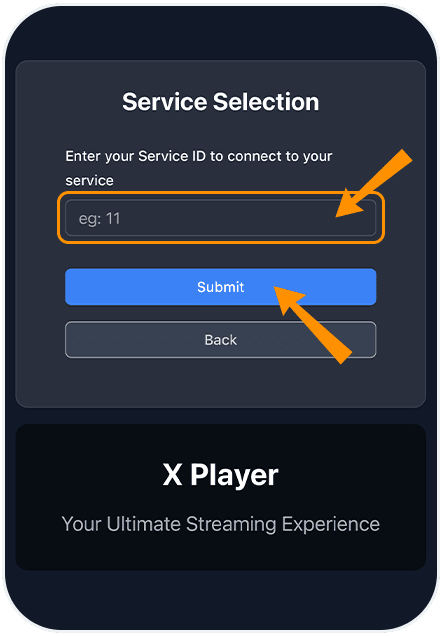
Step - 3
Enter the Service ID provided by your Real TV seller, tap Submit.
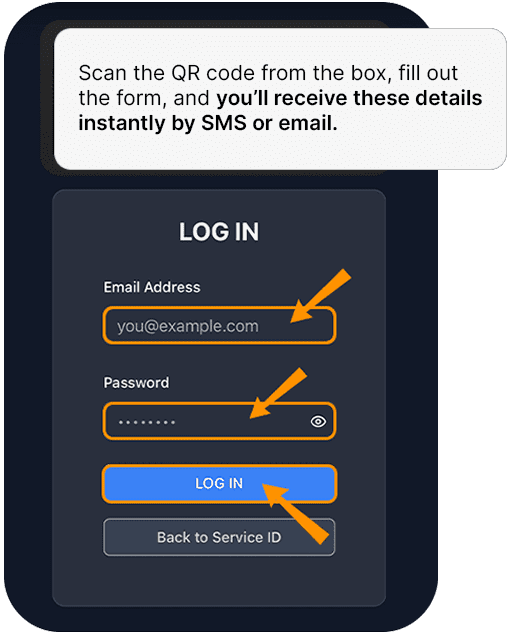
Step - 4
Enter your username and password to sign in (Scan the QR code from the box, fill out the form, and you’ll receive these details instantly by SMS or email).
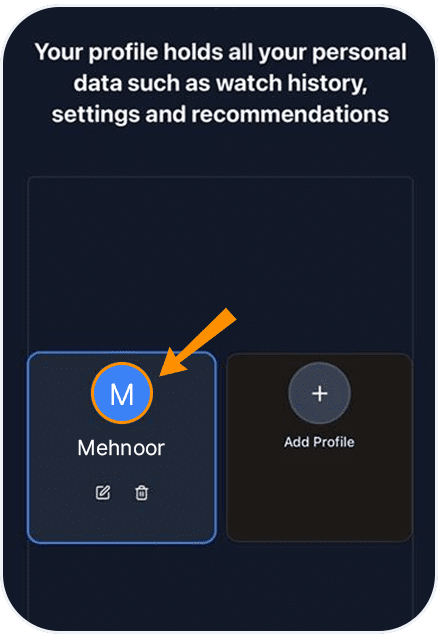
Step - 5
Select an existing profile or add a new one to begin watching with your personalised preferences.
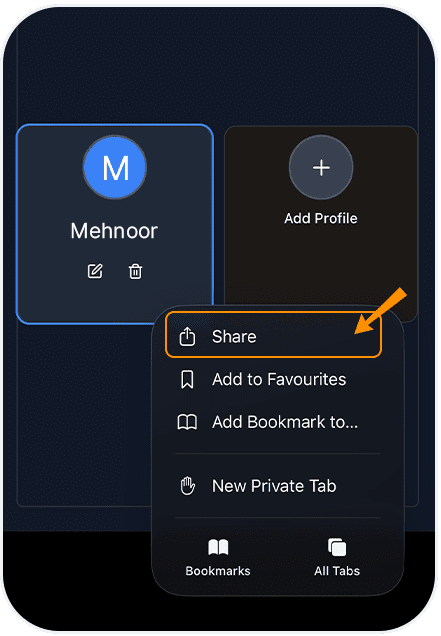
Step - 6
From the bottom right, tap the three dots and select Share to add the app to your home screen.
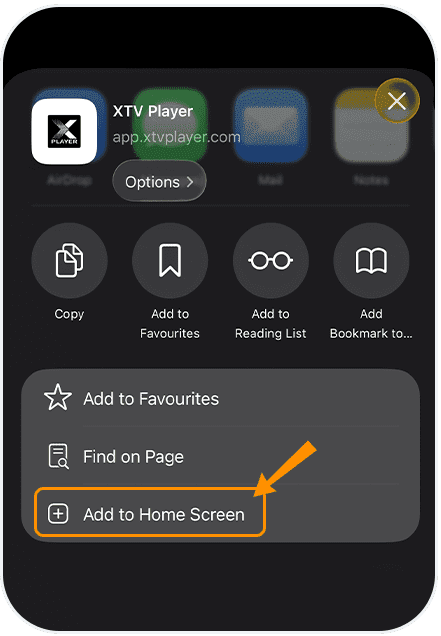
Step - 7
From the list, select and click on Add to Home Screen.
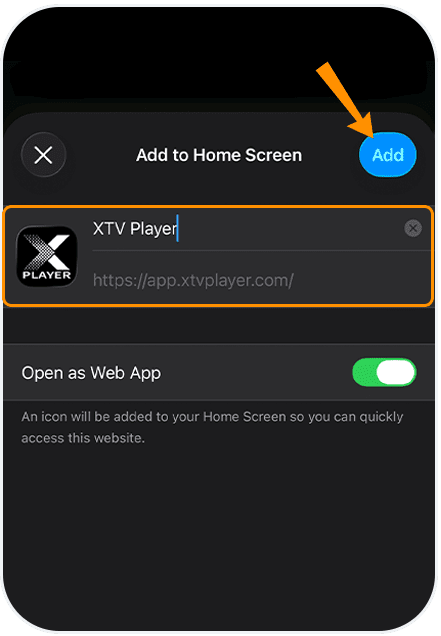
Step - 8
In the next step, click on Add.
You’re all set!
Sit back, relax, and enjoy a seamless entertainment experience like never before. With the XTV Player home screen, you can instantly access Live TV, Latest Movies, Popular Web Series, and much more — all in crystal-clear HD quality.
Watch the Full Setup Video Guide
Make your Real 2X app setup even easier!
If you prefer learning visually, here’s a complete step-by-step video showing the entire process from start to finish. Just follow along and you’ll have the app ready in minutes.
Want to save the instructions for later or share with others?
Tap the button below to download the full PDF guide with all setup steps clearly explained.

